Connect MQTT and configure a panel
Configure Tasmota
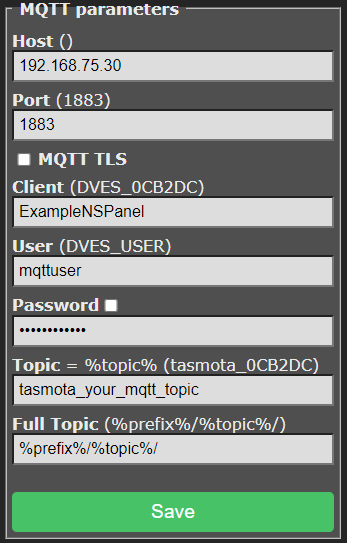
In Tasmota, open Configuration → Configure MQTT. Enter your broker address and credentials, and choose a unique topic such as nspanel_kitchen. Keep the default Full Topic unless you also adjust both topics in the backend.
Configure the add-on
Open the add-on's web interface. Select + to add a panel, or edit the example panel. Set:
- Receive topic:
tele/nspanel_kitchen/RESULT - Send topic:
cmnd/nspanel_kitchen/CustomSend - Model:
eu,us-p, orus-l, matching your display firmware. - Locale and time zone for your installation.
Add at least one card and use real Home Assistant entity IDs. The following complete YAML can be pasted into the YAML editor:
nspanels:
  kitchen:
    panelRecvTopic: tele/nspanel_kitchen/RESULT
    panelSendTopic: cmnd/nspanel_kitchen/CustomSend
    model: eu
    locale: en_US
    timeZone: Europe/Berlin
    timeFormat: "%H:%M"
    dateFormat: full
    screensaver:
      entities:
        - entity: weather.home
    cards:
      - type: cardEntities
        title: Kitchen
        key: home
        entities:
          - entity: light.kitchen
Select Save & apply, then check the add-on log and panel. Save validates and writes the configuration; it does not confirm that the physical panel is connected.
For multiple panels, add another named mapping under nspanels, with different topics. The add-on normally discovers MQTT credentials from Supervisor; external broker settings belong at the top level of panels.yaml, as described in the configuration reference.
For compatible ESPHome installations, see connection modes. For missing content, use the troubleshooting guide.